
01
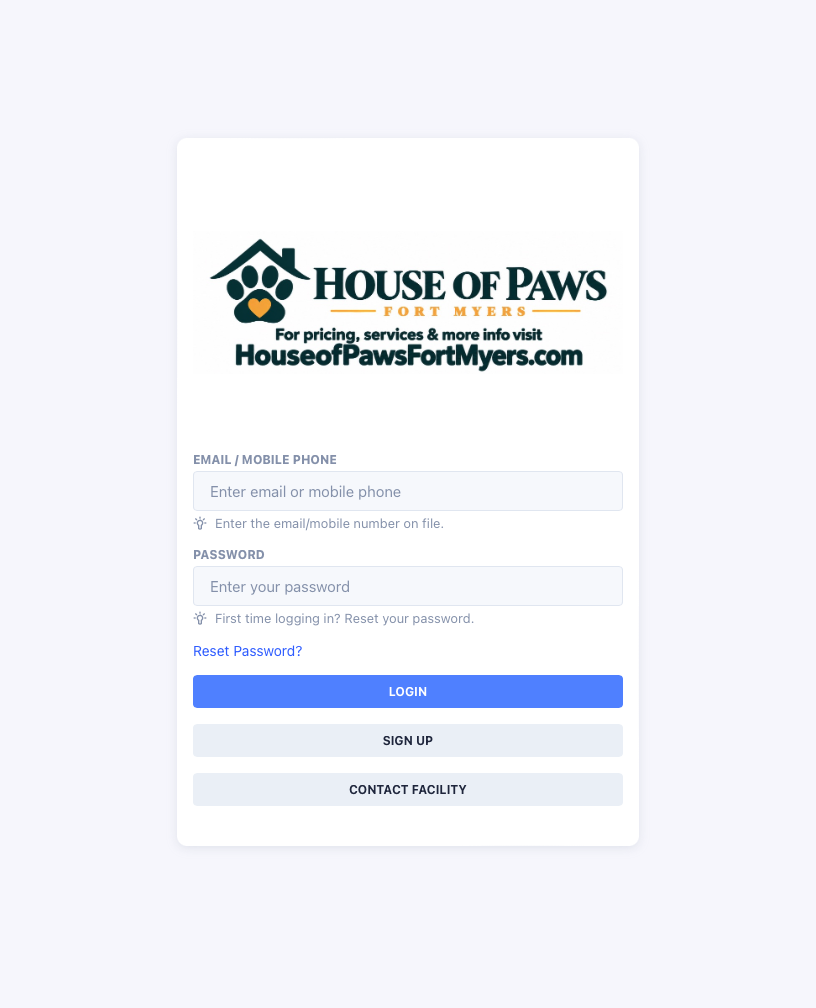
Log in to the Pet Parent Portal.
Use the email or mobile number on your account and your password. If you need help signing in, select Reset Password on the login screen.
 Tap image to enlarge ↗
A little help with Gingr
Tap a topic below for step-by-step help. We'll keep adding guides to make managing your pup's visits easier.
From picking your pup to submitting your request—here's the full walkthrough. Screenshots show an example booking; your available dates, times, services, and prices may differ.
Use the email or mobile number on your account and your password. If you need help signing in, select Reset Password on the login screen.
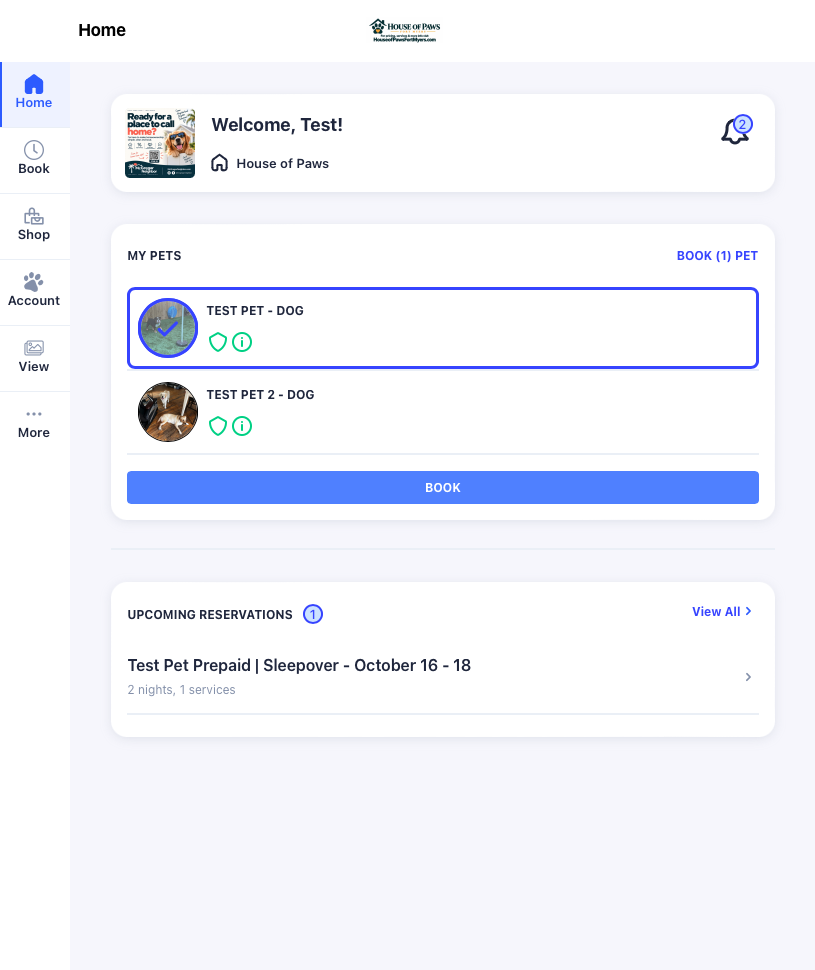
Tap image to enlarge ↗On the Home page, select each pet joining the playdate, then click the blue Book button.
 Tap image to enlarge ↗
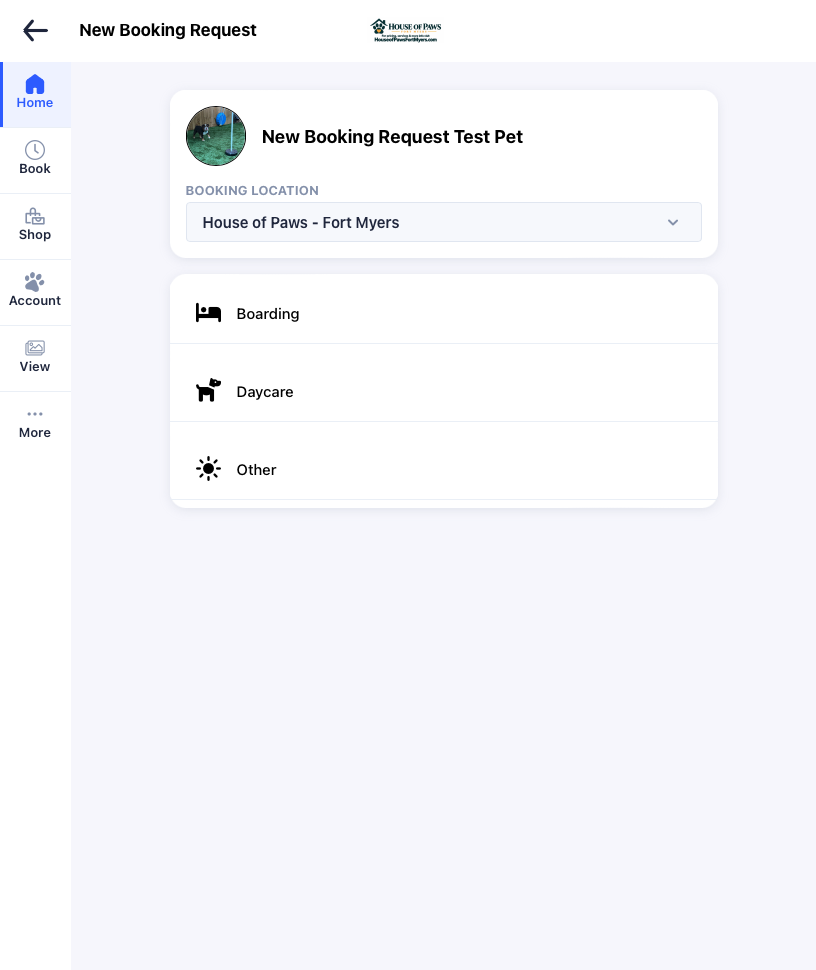
Select Daycare, then choose your playdate type. Classic includes K9 Convoy pickup and drop-off. Pet Parent means you bring your pup to House of Paws and pick them up yourself.
 Tap image to enlarge ↗
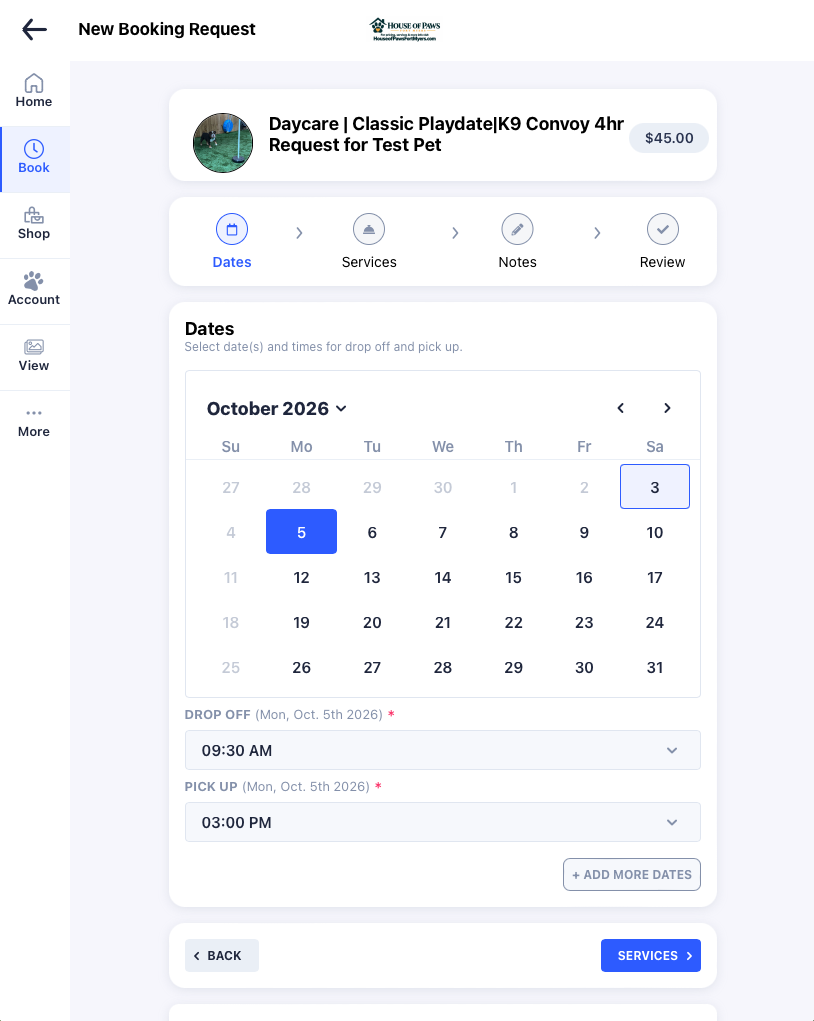
Select your date and choose the drop-off and pick-up times. Only available times will appear. For Classic / K9 Convoy, the times show when the convoy is scheduled to leave House of Paws on its route—not the exact time it reaches your home. For Pet Parent, the times are your exact drop-off and pick-up appointments. Click the blue Services button to continue.
 Tap image to enlarge ↗
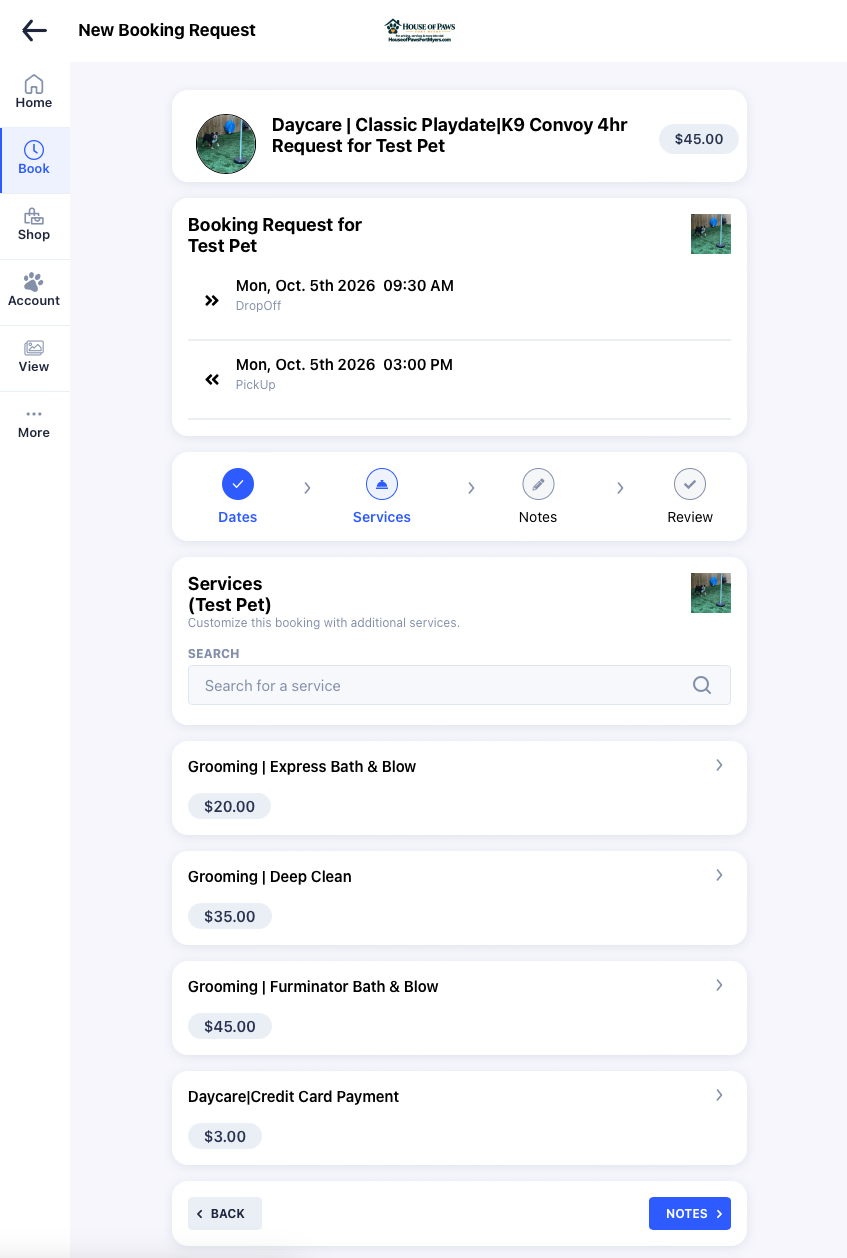
No additional services are required. Add an extra if you want one; otherwise, scroll down and click the blue Notes button.
 Tap image to enlarge ↗
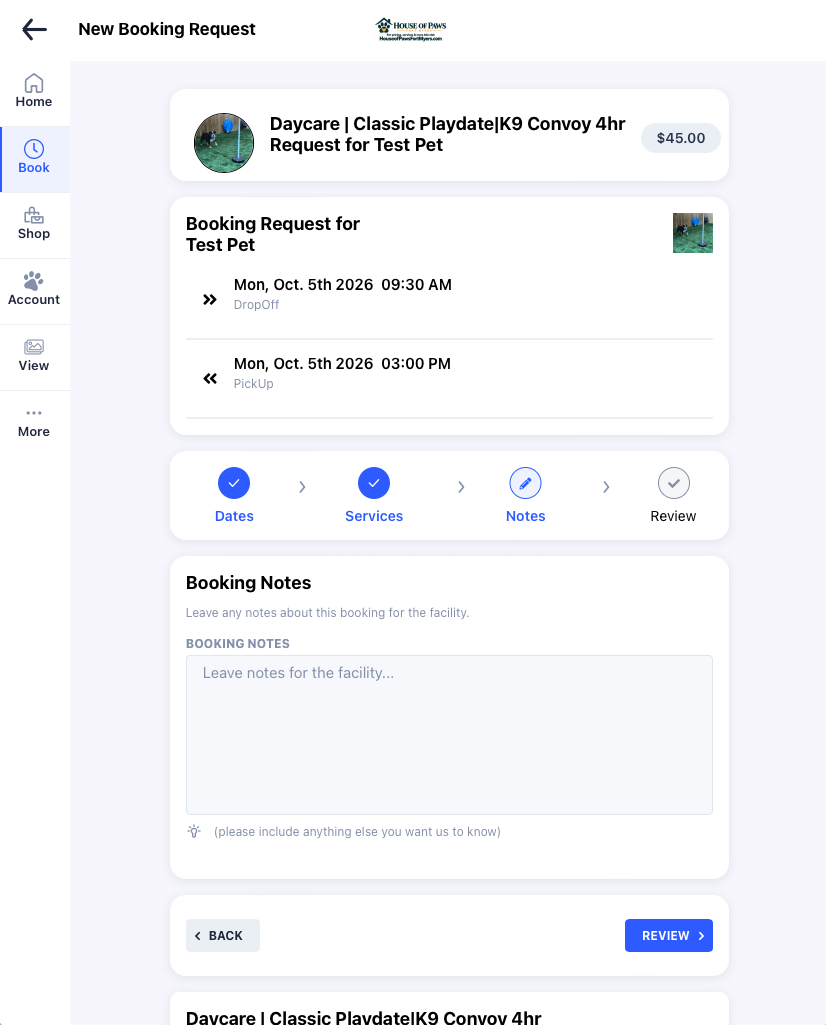
Include anything we need to know for this visit, such as gate or access codes. Then click the blue Review button.
 Tap image to enlarge ↗
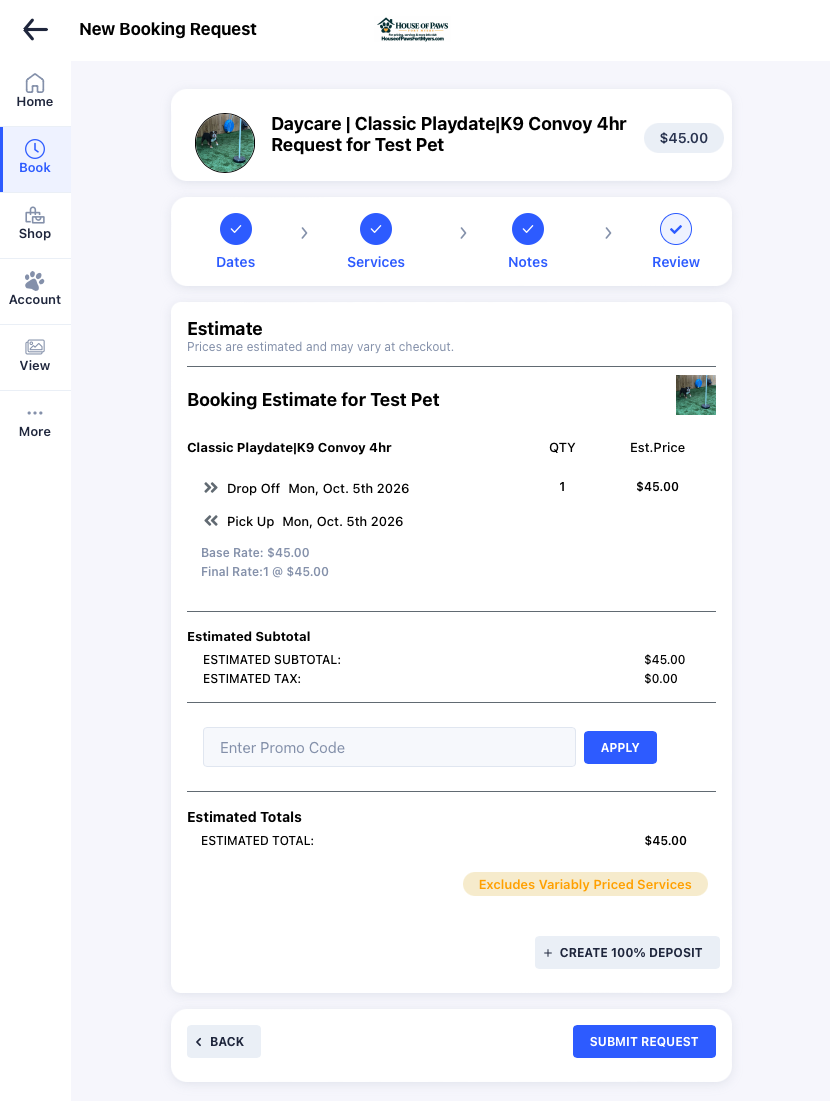
Check your pet(s), playdate type, date, times, extras, and estimate. Once everything is accurate, click the blue Submit Request button.
 Tap image to enlarge ↗
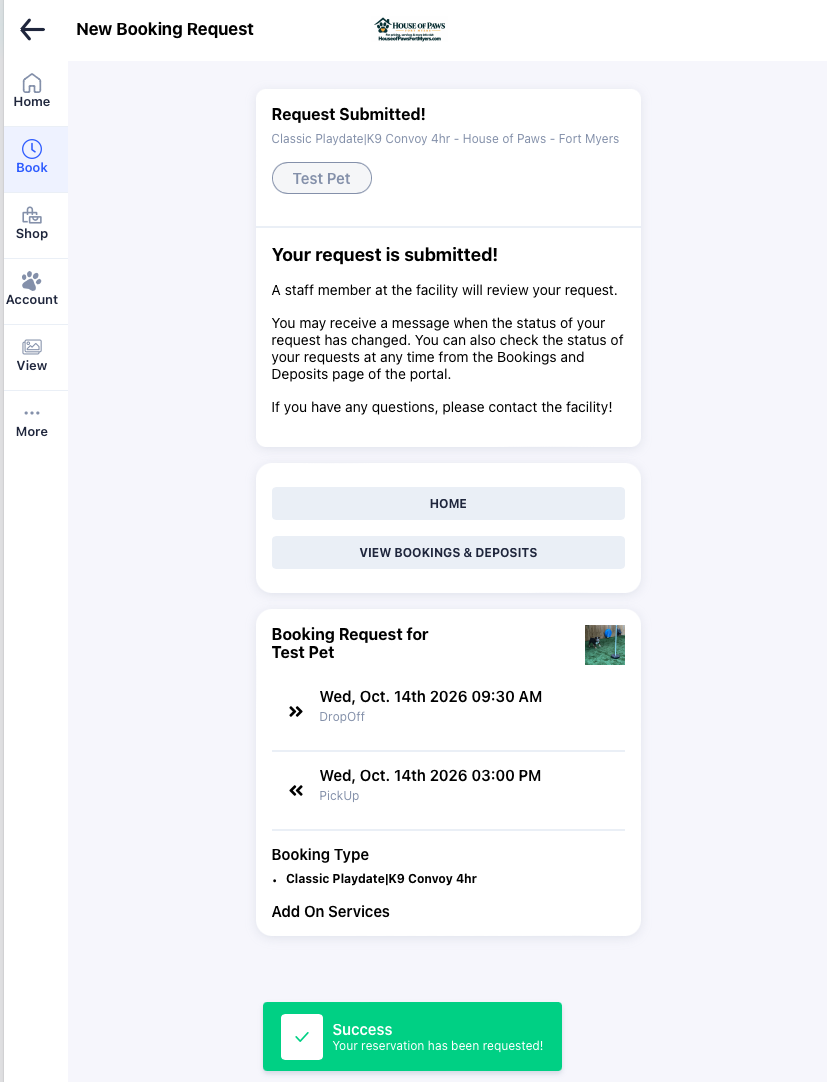
This screen confirms your request was sent. Steve will review it; your request is not confirmed until it has been approved. You can check its status under Bookings & Deposits in the portal.
 Tap image to enlarge ↗
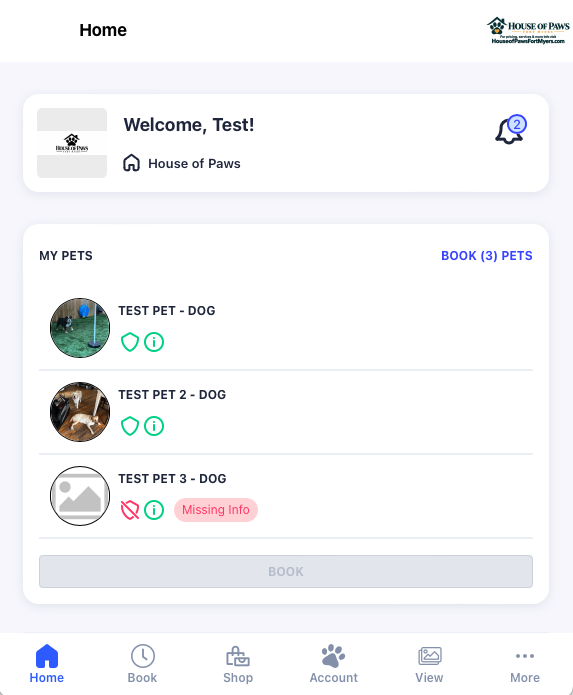
Home → Paw (Account) → Manage Profiles → Add Another Pet. Follow these steps to give us the information we need to care for your new pup.
Log in to the Pet Parent Portal and open Home. Tap the paw icon labeled Account in the bottom navigation.
 Tap image to enlarge ↗
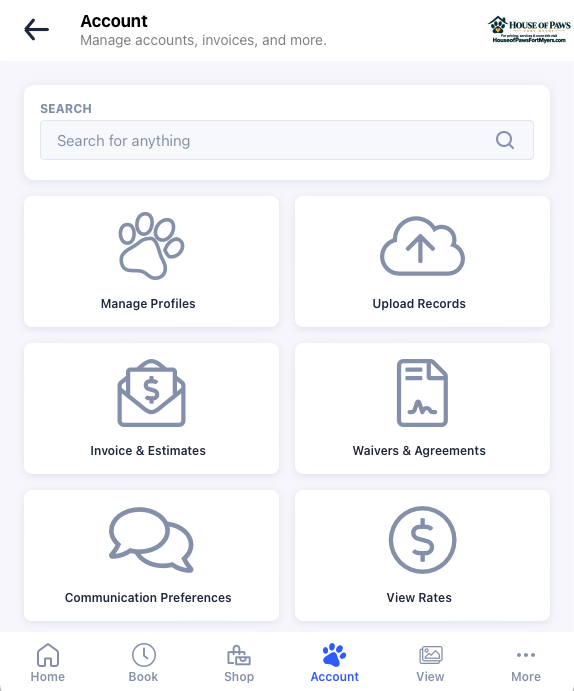
On the Account page, select Manage Profiles.
 Tap image to enlarge ↗
Find Add Another Pet and click Add Pet to start your new pet’s profile.
 Tap image to enlarge ↗
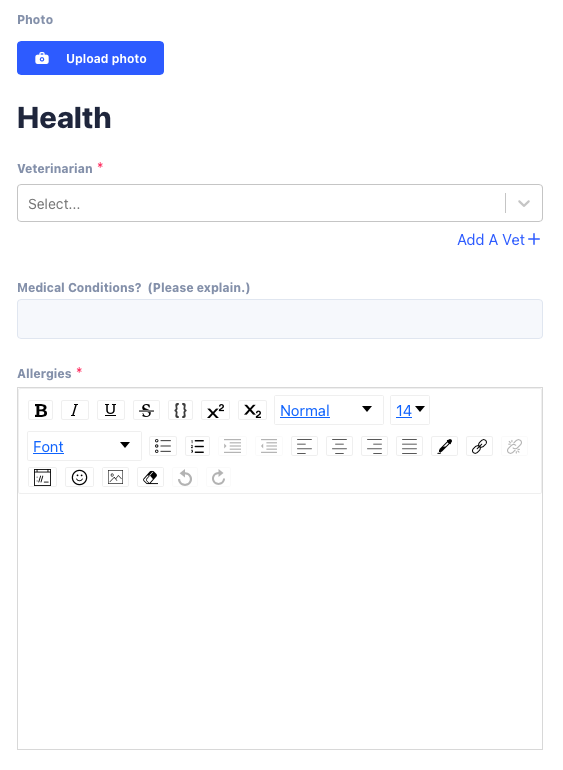
Required sections are marked with an asterisk (*). Veterinarian and Allergies are common places to get stuck: select your veterinarian, or use Add a Vet if needed. Allergies requires text—even if your pet has no allergies, enter NA or None instead of leaving it blank. Include any medical conditions and other relevant information we should know about your pup.
 Tap image to enlarge ↗
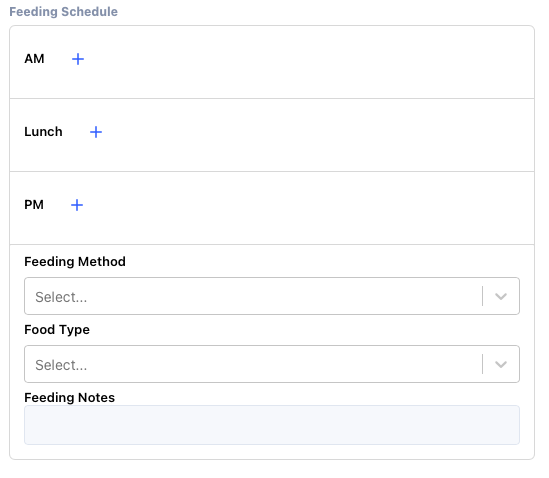
Please include your pet’s food, schedule, amounts, and feeding instructions even if they are not sleeping over, so we can care for them in an emergency. If it is easier, or their instructions are unique or complicated, put the details in Feeding Notes beneath Feeding Method and Food Type. Include anything else that helps us care for your pet, then review and save their profile.
 Tap image to enlarge ↗
Our payment guide walks you through invoices, estimates, Zelle, and Venmo.
Need a hand?
If something looks different or you get stuck, send Steve a message.
Get in touch